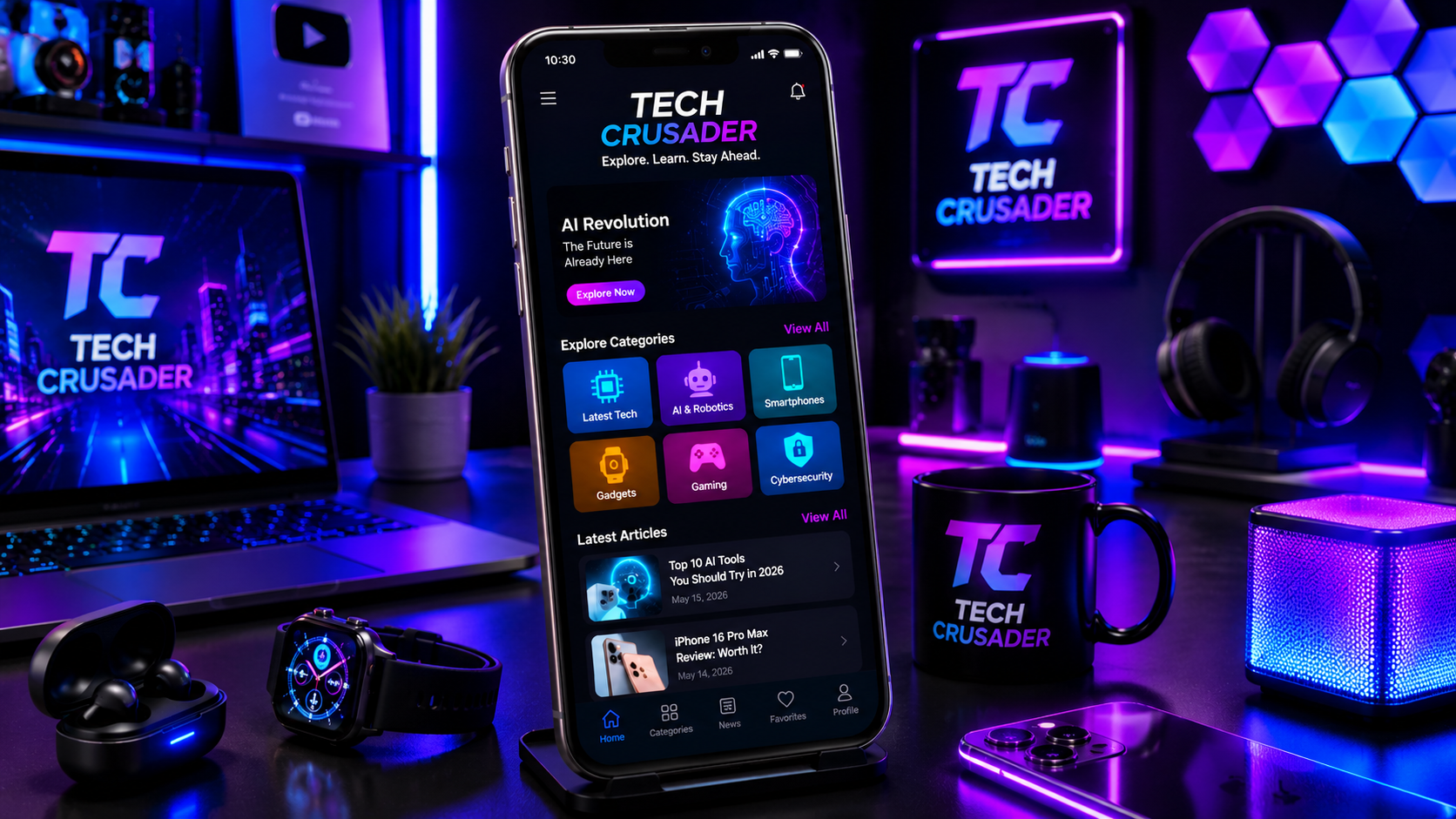
What Is the Tech Crusader App?
The Tech Crusader app is a mobile app made for people who enjoy technology. It gives users tech news, simple guides, app tips, gadget updates, and useful learning content in one place. Many people use the Tech Crusader app to stay updated with new technology without reading long articles. The app is easy to use, even if you are new to tech.
In 2026, more people want fast and simple information. That is why the Tech Crusader app has become popular with students, creators, gamers, and everyday smartphone users.
Why People Like the Tech Crusader App?
There are many reasons why users download the Tech Crusader app. Some people want quick tech news. Others want app reviews before installing new apps. Many users also enjoy simple tutorials that explain difficult topics in easy words. The app saves time because everything is available in one place.
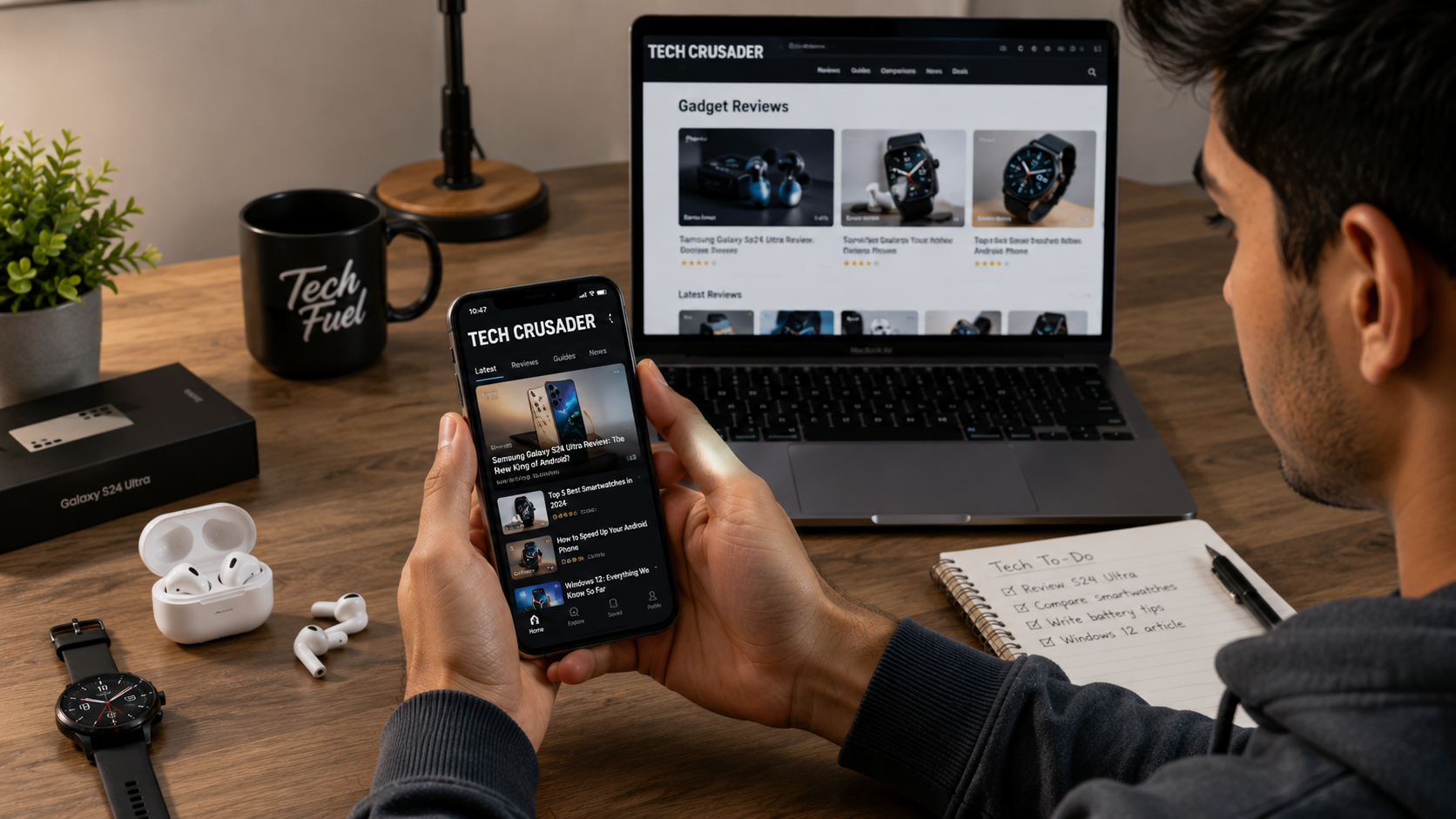
Main Features of the Tech Crusader App
The Tech Crusader app comes with many helpful features.
Daily Tech News
The app shares fresh technology news every day.
You can read about:
- New smartphones
- Software updates
- AI tools
- Gaming news
- Security tips
- Tech events
The news is written in simple language.
App Reviews
Before downloading an app, many users want to know if it is good. It offers reviews that explain:
- Main features
- Good points
- Weak points
- User experience
- Performance
This helps users make better choices.
Gadget Reviews
If you plan to buy a phone, laptop, smartwatch, or earbuds, the app gives useful information.
Each review covers:
- Design
- Camera
- Battery
- Speed
- Display
- Value for money
Easy Tech Tutorials
Many people feel confused by technology. The Tech Crusader app explains topics step by step.
Popular tutorials include:
- Phone settings
- Android tips
- iPhone tricks
- Privacy settings
- Internet safety
- App installation
The guides are short and easy to understand.
Simple User Interface
- The app has a clean design.
- Buttons are easy to find.
- Menus are simple.
Even first-time users can learn the app quickly.
Fast Search
- Looking for something specific?
- The search tool helps users find articles within seconds.
- Just type a keyword, and the app shows related content.
Bookmark Feature
You can save articles for later. This is useful if you do not have time to read everything now.
Notifications
It can send alerts when new content is available. Users never miss important updates.
Benefits of Using the Tech Crusader App
There are many benefits of using the Tech Crusader app every day.
Learn New Technology
Technology changes very fast. The app helps users stay updated. You can learn something new every day.
Save Time
Instead of visiting many websites, users get everything inside one app. This makes learning faster.
Easy for Beginners
Many tech websites use difficult words. It can explains everything in simple English. This is great for beginners.
Helpful for Content Creators
Many creators need ideas every day.
The app shares:
- Trending topics
- New apps
- AI tools
- Editing apps
- Social media updates
These ideas help creators make better content.
Better Buying Decisions
Buying a new gadget can be confusing. Reviews inside the app explain what is good and what is not. This helps users spend money wisely.
Who Should Use the Tech Crusader App?
Almost anyone interested in technology can use it. The app is useful for:
- Students
- Teachers
- Mobile users
- YouTubers
- Bloggers
- Gamers
- Social media creators
- Office workers
- Tech fans
How to Download the Tech Crusader App
Downloading the app is quick and easy. Follow these simple steps to get started.
Step 1: Open the app store on your phone. Use Google Play Store for Android or the Apple App Store for iPhone.
Step 2: Type Tech Crusader app into the search bar and press Search.
Step 3: Find the correct app. Check the app name, logo, and publisher to make sure you are downloading the right one.
Step 4: Tap the Install or Get button to begin the download.
Step 5: Wait for the app to download and install. This may take a few moments, depending on your internet speed.
Step 6: Open the app, complete the setup if needed, and start exploring its features and tech content.
How to Install the Tech Crusader App
After downloading:
- Open the app.
- Accept the permissions if needed.
- Sign in or create an account if the app asks.
- Choose your interests.
- Start reading tech content.
The setup only takes a few minutes. Here’s a more natural and reader-friendly version:
Is the Tech Crusader App Free?
Many people want to know if the app is free to use. In most cases, you can download the app at no cost. However, the features you get may depend on the version you use. The free version may include the main tools and content. Some advanced features, premium content, or extra services may require a subscription or an in-app purchase. Before downloading, check the official app listing to see the latest pricing, available features, and any premium plans. This helps you know exactly what is included before you install the app.
Is the Tech Crusader App Safe?
Many users ask if the app is safe to use. The answer depends on where you download it. Always install the app from a trusted app store or the official website if one is available. Do not download APK files or app copies from unknown websites. They may contain harmful software or outdated versions of the app.
Before installing the Tech Crusader app, follow these simple safety tips:
- Read recent user reviews.
- Check the app permissions.
- Keep your phone updated.
- Use a trusted security app if needed.
- Install the latest version of the app.
These easy steps can help protect your device and keep your personal information safe.
Tips for Getting the Best Experience
You can enjoy the app even more by following these tips.
- Update the app regularly.
- Turn on notifications.
- Save useful articles.
- Use the search feature often.
- Share interesting posts with friends.
- Read reviews before buying gadgets.
Small habits can improve your experience.
Common Problems and Simple Fixes
Like any mobile app, the Tech Crusader may sometimes have small issues. Most problems are easy to fix with a few simple steps.
App Is Running Slow
If the app feels slow, close it and open it again. If the problem continues, restart your phone. You can also clear the app cache if your device allows it.
App Does Not Open
Make sure you are using the latest version of the Tech Crusader app. If an update is available, install it. Also, check that your phone’s operating system is up to date.
Content Is Not Loading
If articles or videos do not load, check your internet connection. Try switching between Wi-Fi and mobile data. You can also refresh the page or reopen the app.
Login Problems
If you cannot sign in, check that your email address and password are correct. If you forgot your password, use the Forgot Password option to reset it. Make sure you have a stable internet connection before trying again.
Tech Crusader App Compared With Other Tech Apps
Many tech apps offer news, reviews, or tutorials. The Tech Crusader app stands out because it explains technology in simple and easy words. This makes it a good choice for beginners and casual users. Some apps only share long articles, while others focus only on videos. The Tech Crusader app combines tech news, app reviews, gadget reviews, helpful guides, and simple tutorials in one place. This makes it easier for users to find the information they need without switching between different apps.
Why the Tech Crusader App Is Growing in 2026
The Tech Crusader app is becoming more popular in 2026 because people want quick and easy access to technology information. Instead of spending time searching through many websites, users can find helpful content in one app.
Its clean design, fast navigation, and easy-to-understand content help people learn new technology without feeling confused. As more users look for simple and reliable tech resources, the Tech Crusader app continues to attract new downloads in 2026.
Frequently Asked Questions (FAQs)
1. What is the Tech Crusader app?
The Tech Crusader app is a mobile application that provides tech news, app reviews, gadget updates, and simple tutorials in one place.
2. Is the Tech Crusader app free to download?
Yes, you can usually download the Tech Crusader app for free. Some premium features or tools may require a subscription or in-app purchase.
3. Where can I download the Tech Crusader app?
Download the Tech Crusader app from trusted app stores, such as the Google Play Store or Apple App Store, or from the official website if available.
4. Is the Tech Crusader app safe to use?
Yes, the app can be safe if you download it from a trusted source. Avoid downloading APK files from unknown websites.
5. What devices support the Tech Crusader app?
The Tech Crusader app is available for most Android and iOS smartphones. Check the app store listing to see the latest device requirements.
6. Do I need an account to use the Tech Crusader app?
Some features may work without an account, but creating one may give you access to extra features, saved content, and personalized recommendations.
7. Can I use the Tech Crusader app without an internet connection?
Some saved content may be available offline, but most features need an internet connection to load the latest news and updates.
8. How do I update the Tech Crusader app?
Open your device’s app store, search for the Tech Crusader app, and tap Update if a new version is available.
9. Why is the Tech Crusader app not working?
If the app is not working, restart your phone, check your internet connection, update the app, or reinstall it if needed.
10. Who should use the Tech Crusader app?
The Tech Crusader app is a good choice for students, content creators, gamers, professionals, and anyone who wants easy-to-understand technology news and guides.
Final Thoughts
The Tech Crusader app is a useful choice for anyone who wants easy technology updates, app reviews, gadget news, and simple tutorials. Its clean design, beginner-friendly guides, and helpful features make learning about technology less confusing. If you enjoy staying updated with new tech, the Tech Crusader app is worth checking out. Always download it from a trusted source and keep the app updated for the best experience.